UD Wiki
Temple A/V Setup
The following is a basic rundown of how to set up the audio system and projector for Zoom meetings. Further details to come.
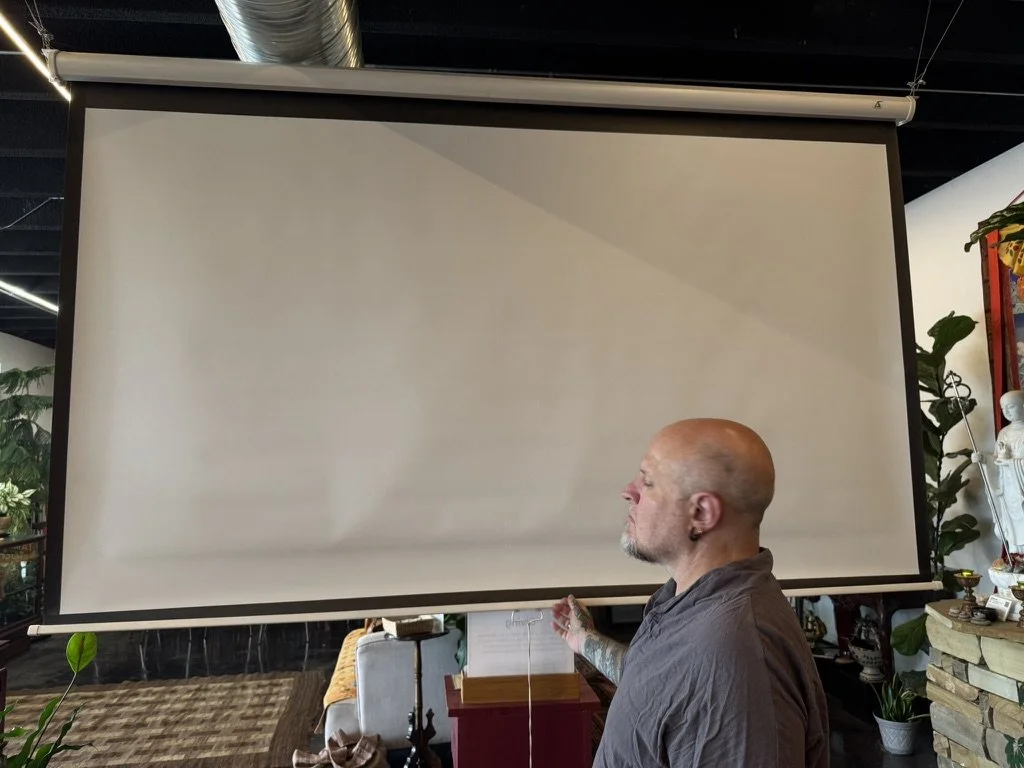
Lower the Projector.
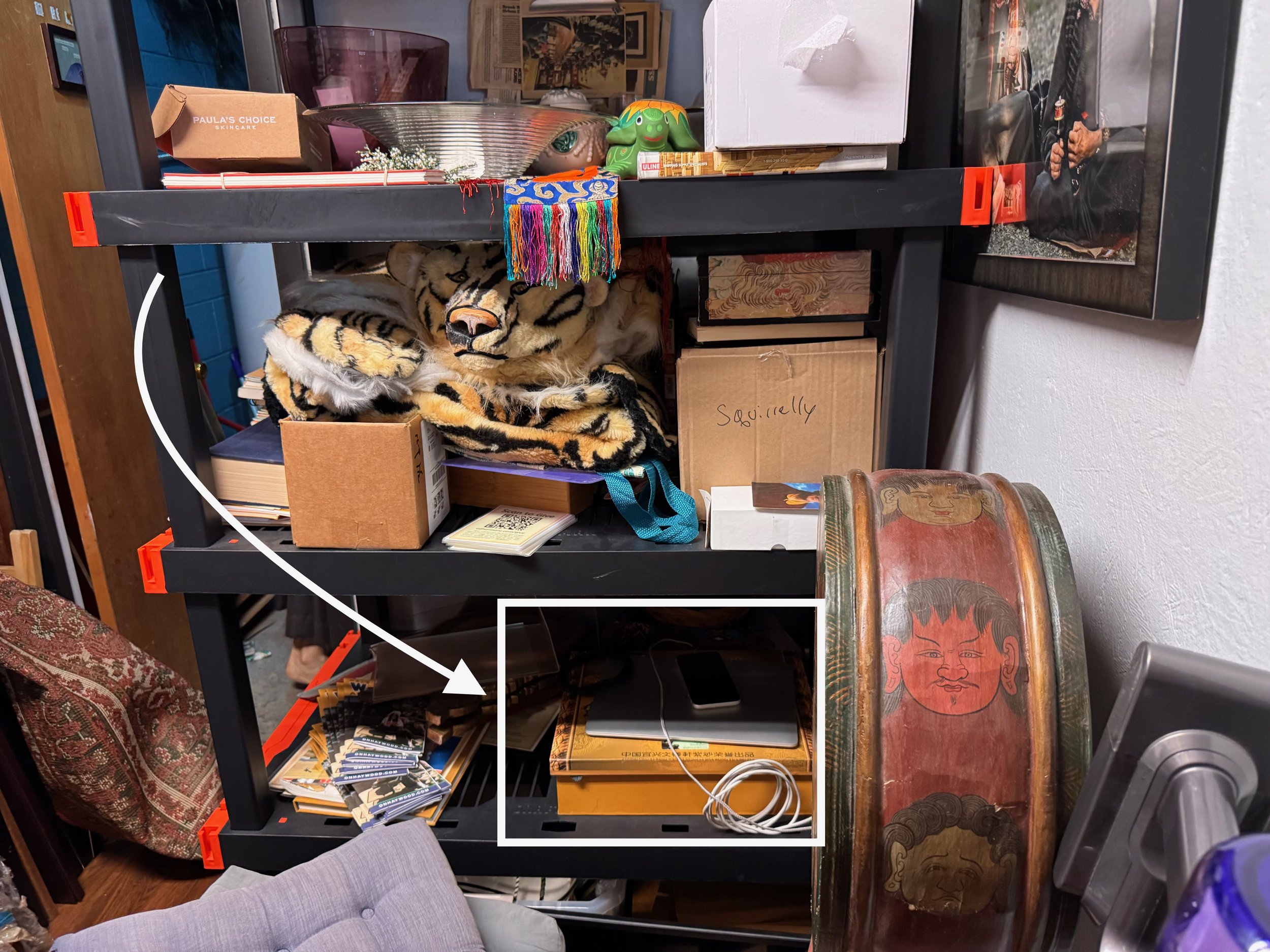
Gather the Laptop and iPhone, as well as their chargers
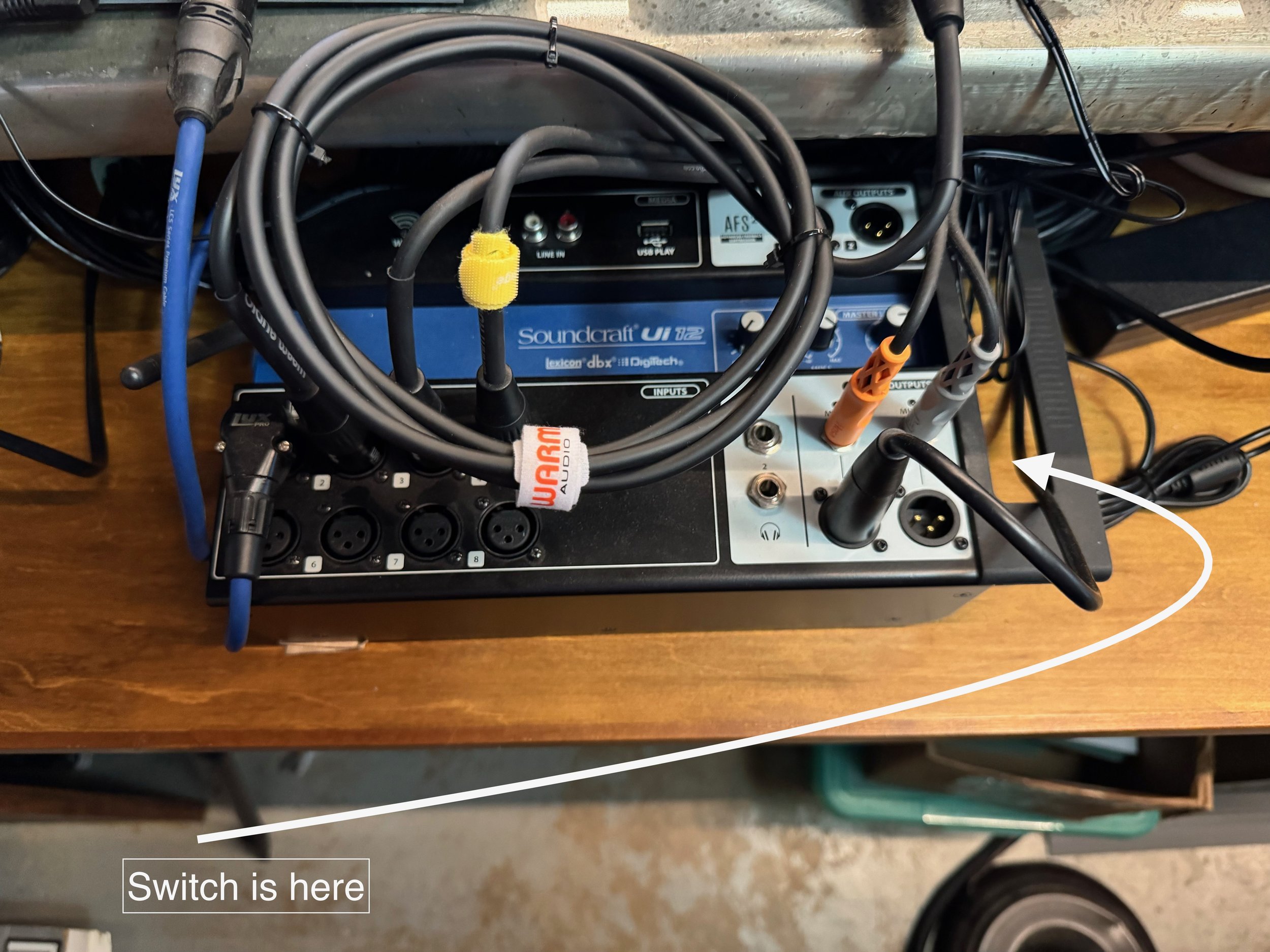
Turn on the sound board using the switch on the right side
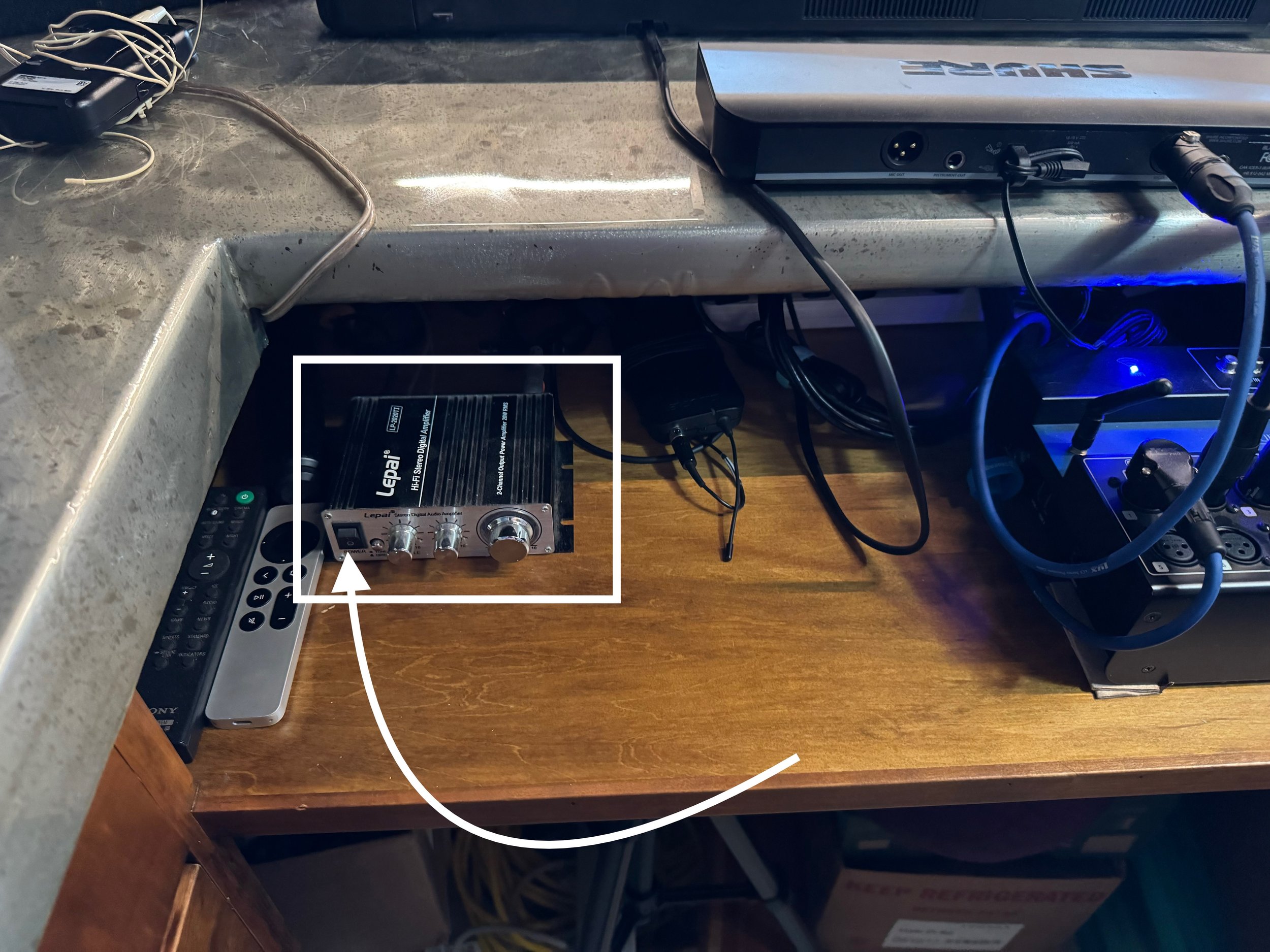
Turn on the amplifier on the shelf, to the left of the board
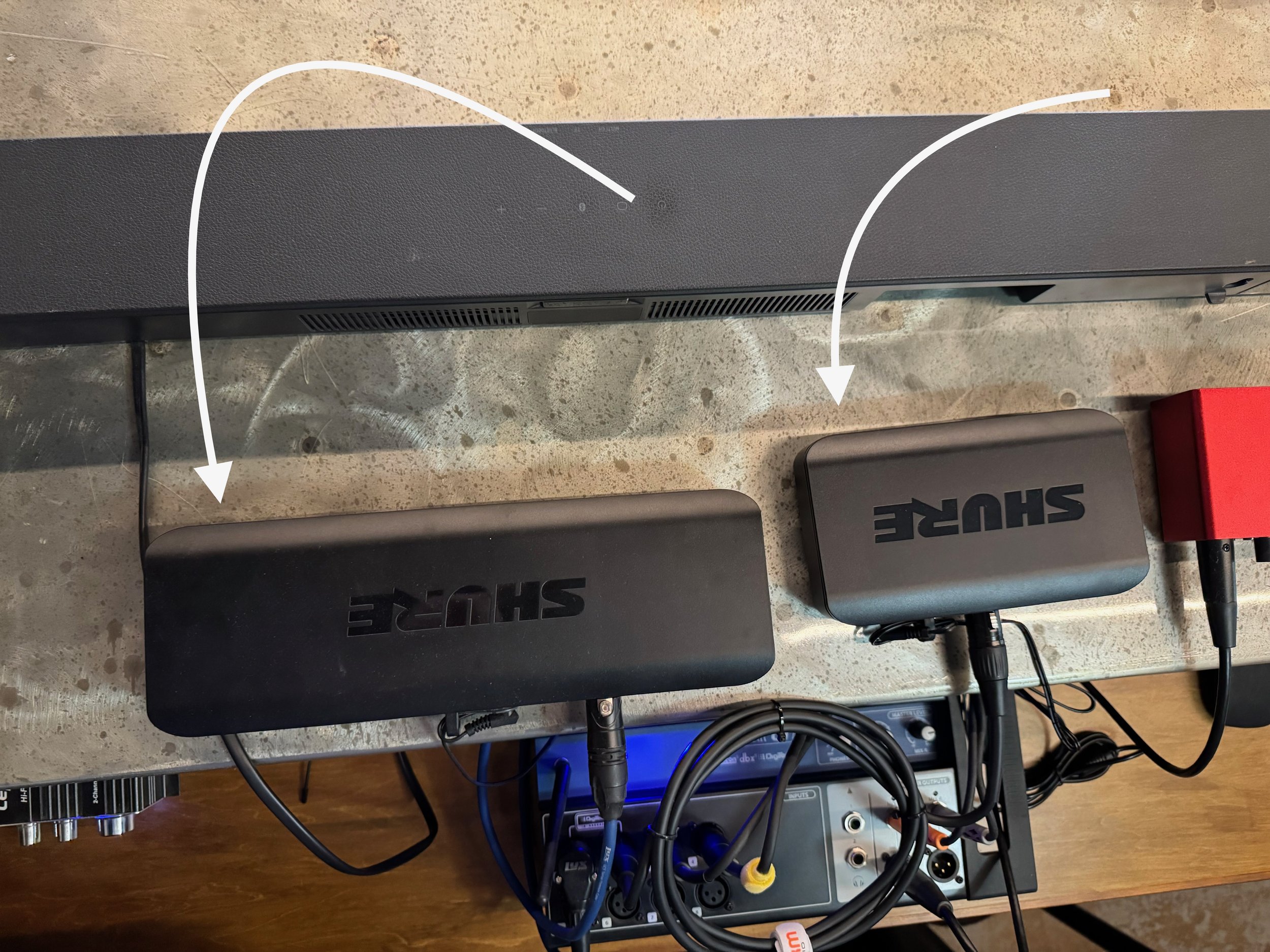
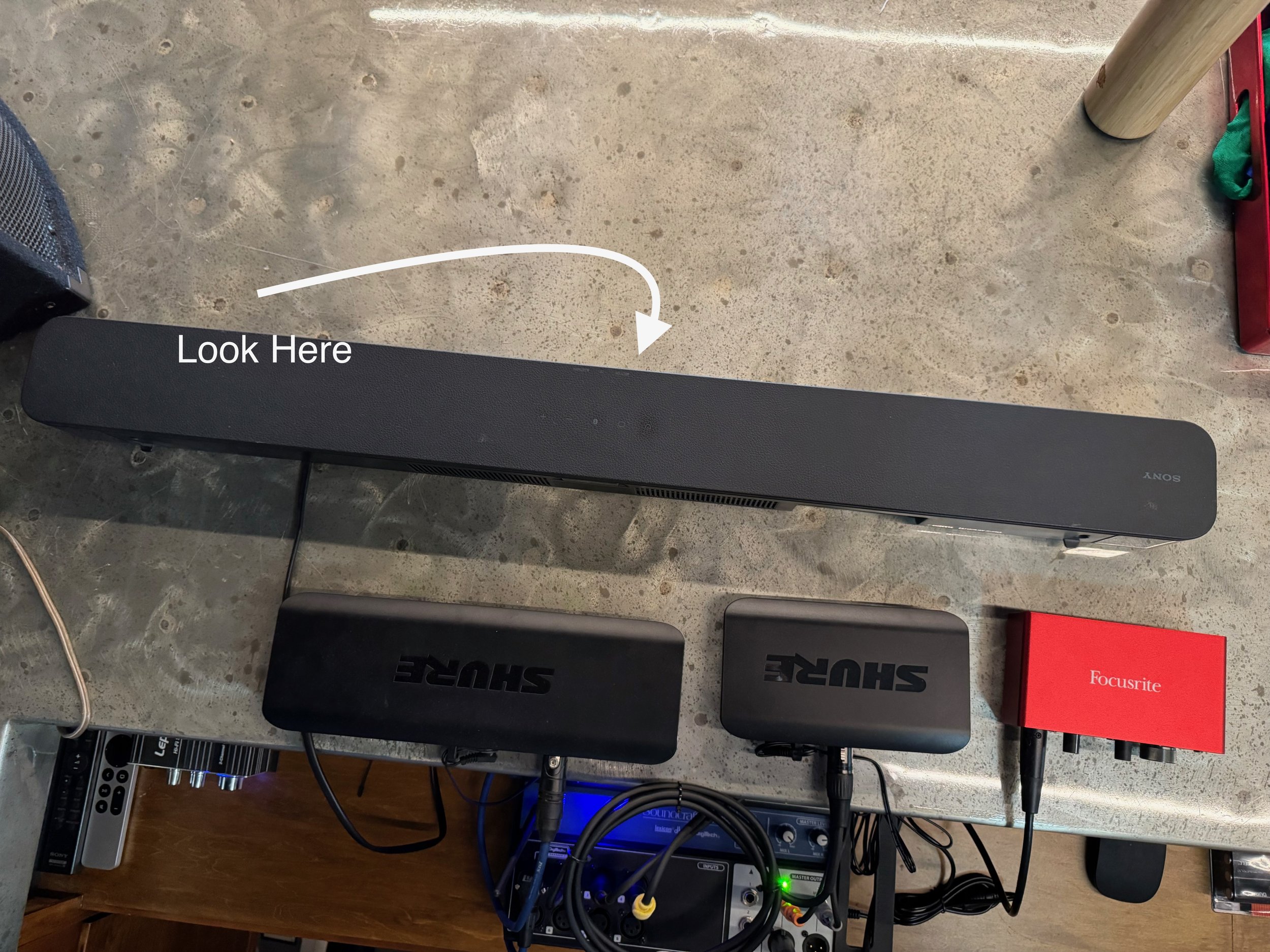
Turn on the wireless mic receiver, the black thing on the counter
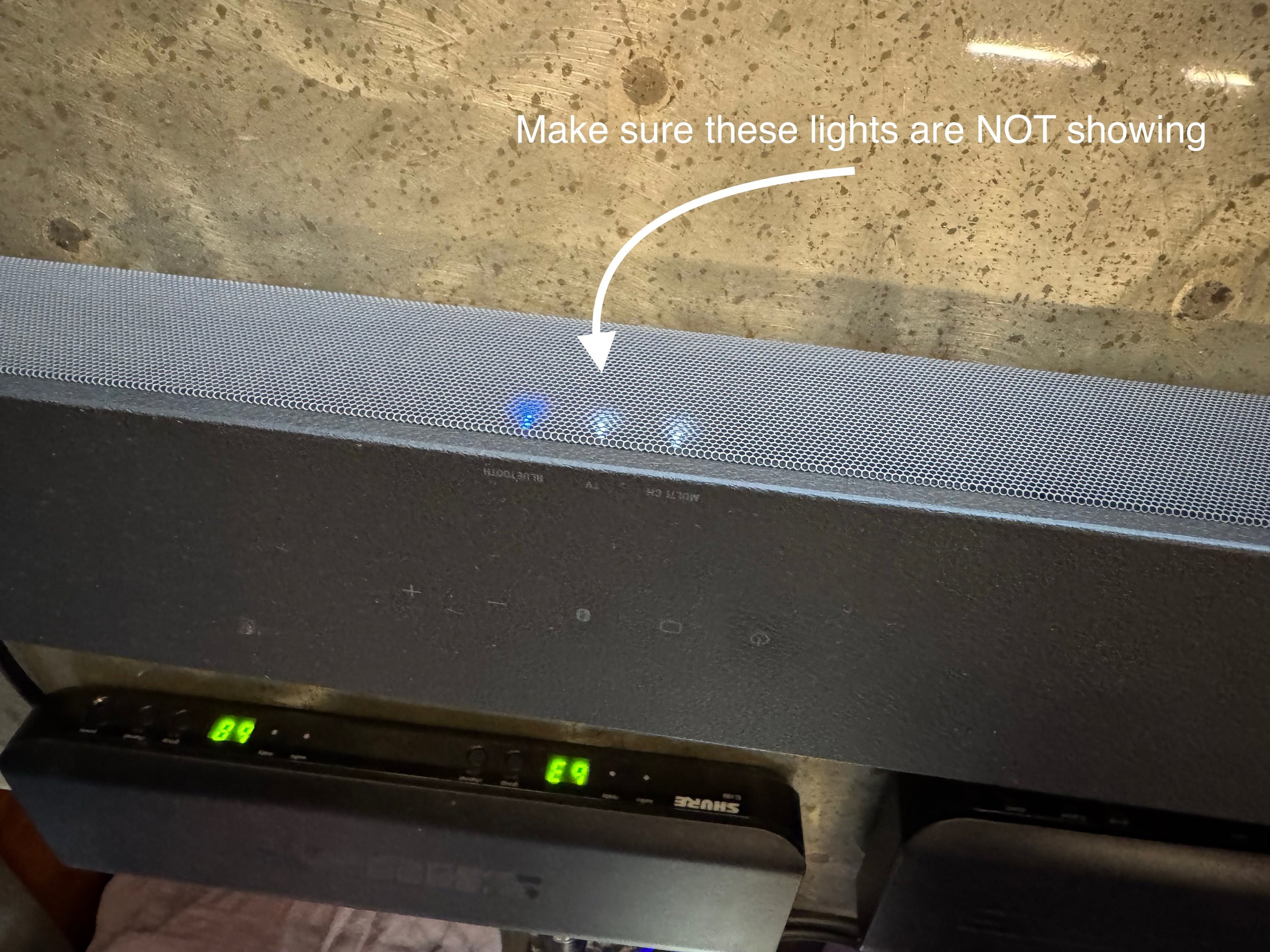
Make sure the sound bar is off. If there's a blinking light, it's on and disconnected. Touch the power button to turn it off.
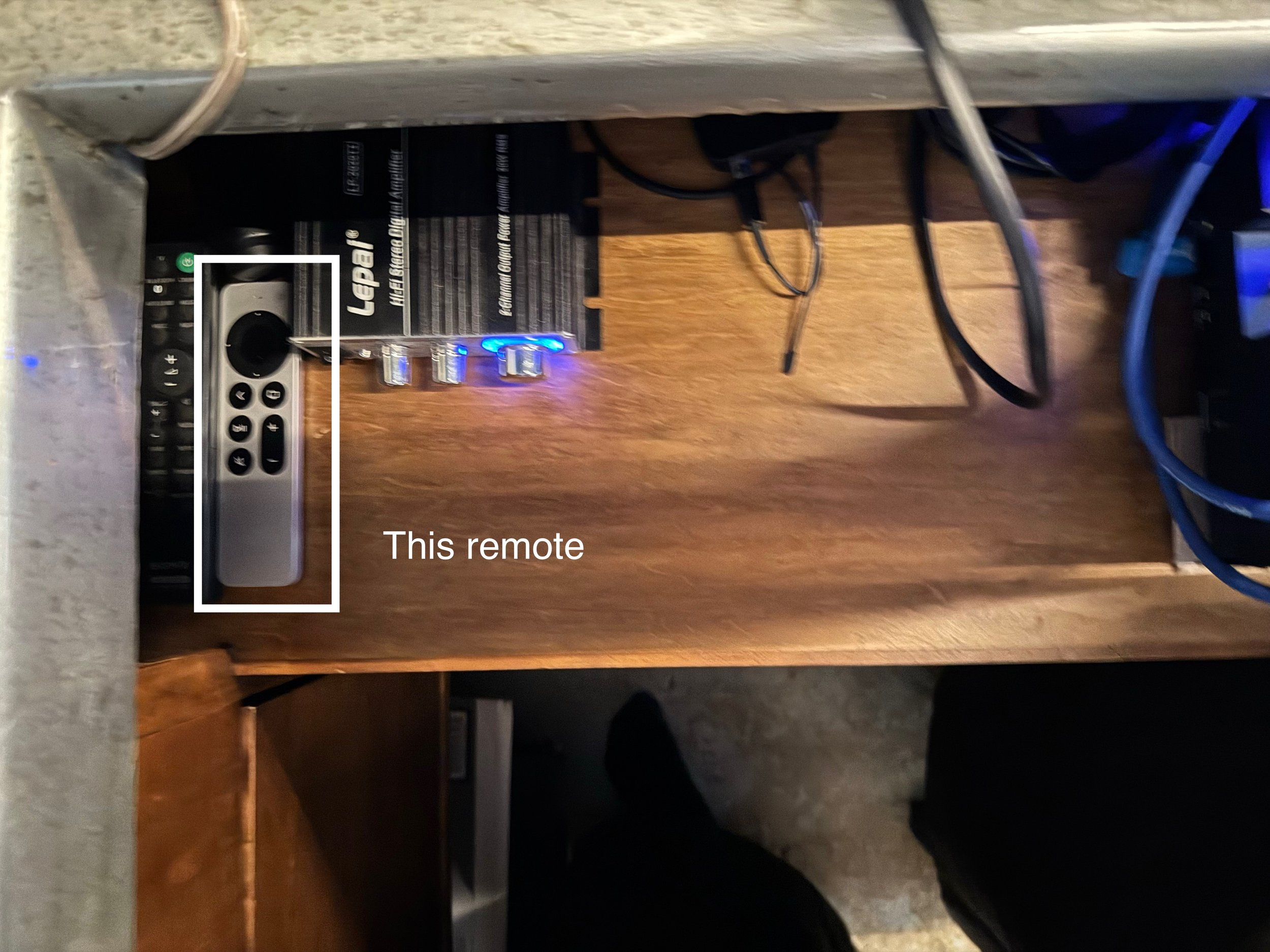
Turn on the Apple TV with the remote; this will turn projector on as well
Turn the sound bar on. It should automatically connect to the Apple TV. You can test by using the volume buttons on the remote. If it doesn't connect:
Press the button on the remote that look like it has a TV on it
Go to Settings
Go to Remotes and Devices
Go to Bluetooth
Select the speaker, HT-S350
Press the TV button to go back to the home page
Open the laptop. If you don't know the password, ask Jon.
Connect the laptop to the audio interface, the black and red box on the counter, using the USB-C cable.
Open Zoom and start the chosen meeting
Select the Urban Dharma iPhone as the camera
Mirror the screen to the Apple TV. If you do this before setting up the speaker or configuring the camera, you will need to stop mirroring, do those things, then resume mirroring.